

AI Agent Testing and Scanning Platform
Giskard Hub is our enterprise platform for scanning, testing, and evaluating AI agents and agentic applications with team collaboration and continuous red teaming. The Hub provides a comprehensive user interface for these workflows in production environments with enterprise-grade security and collaboration features.
The Hub is the user interface from which you can scan, test, and evaluate agentic applications, including LLM-based chatbots, RAGs and classification systems. It implements the following workflow:
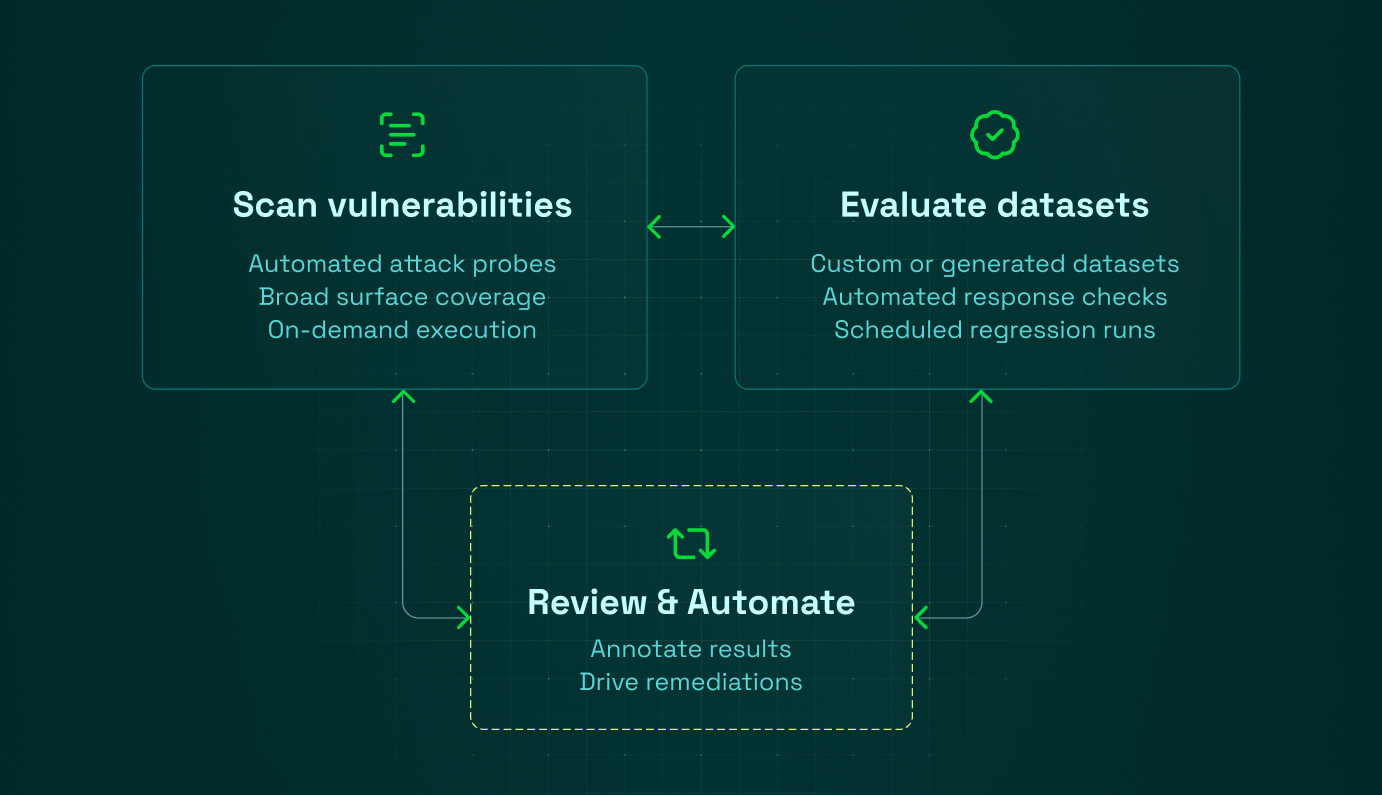
Agent testing and scanning workflow
Section titled “Agent testing and scanning workflow”graph LR
B[<a href="/hub/ui/scan" target="_self">Scan</a>] --> D[<a href="/hub/ui/datasets" target="_self">Create Scenarios</a>]
D --> F[<a href="/hub/ui/annotate" target="_self">Annotate & Assign Checks</a>]
F --> G[<a href="/hub/ui/evaluations" target="_self">Run Evaluations</a>]
G --> H[<a href="/hub/ui/evaluations" target="_self">Review Results</a>]
H --> F
H --> B
The dashboard
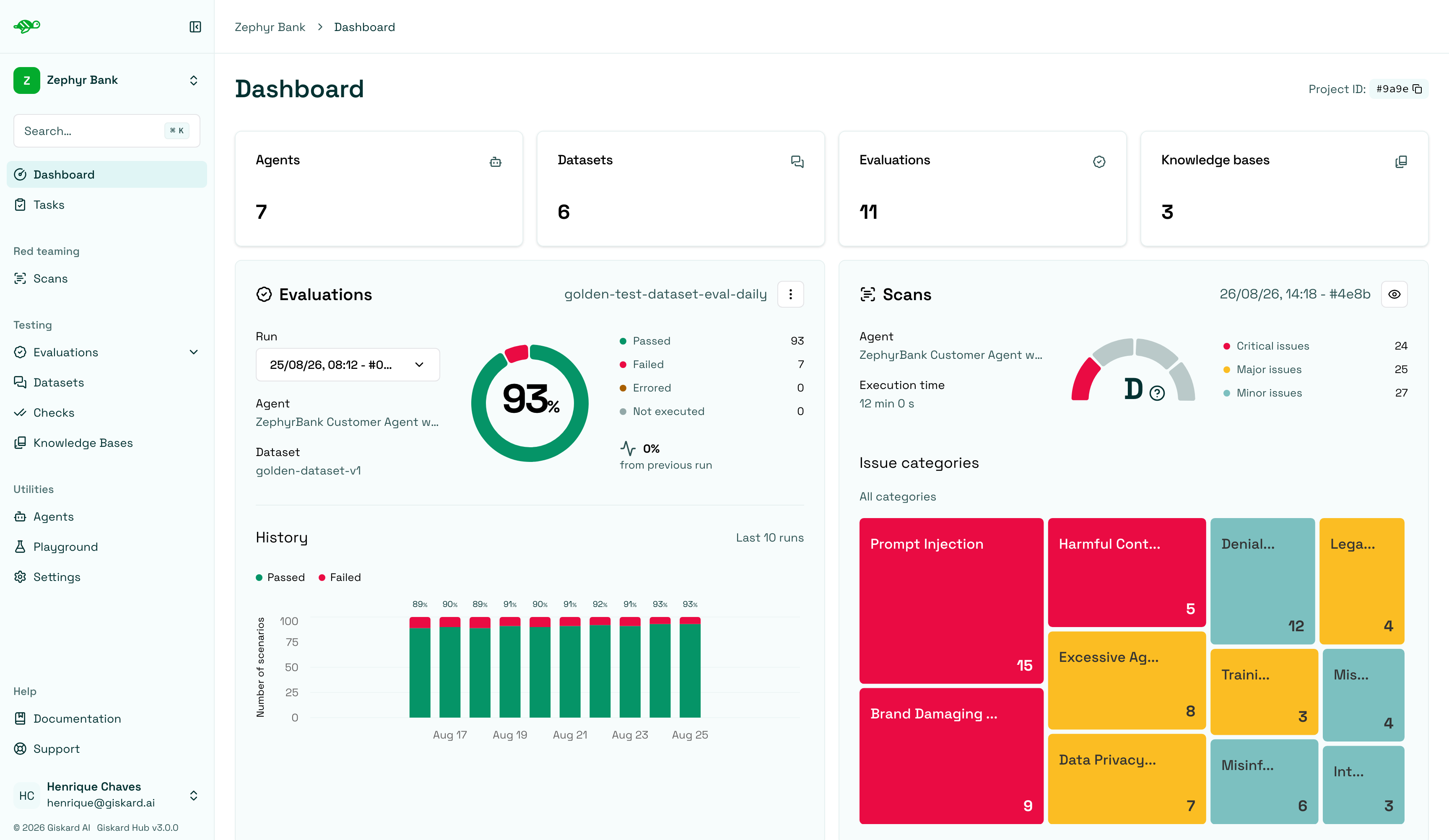
Section titled “The dashboard”The Dashboard is the first page you’ll see upon logging in. It provides an overview of your project, displaying the number of agents, datasets, evaluations, and knowledge bases, along with scheduled evaluations of the agent’s performance over time and a summary of recent scans.
Create a project
Section titled “Create a project”To create a project, click the Settings icon on the left panel. This page lets you manage your projects and users (if you have the proper access rights).
In Projects, click “Create project”. A modal appears where you can enter the project’s name and description.
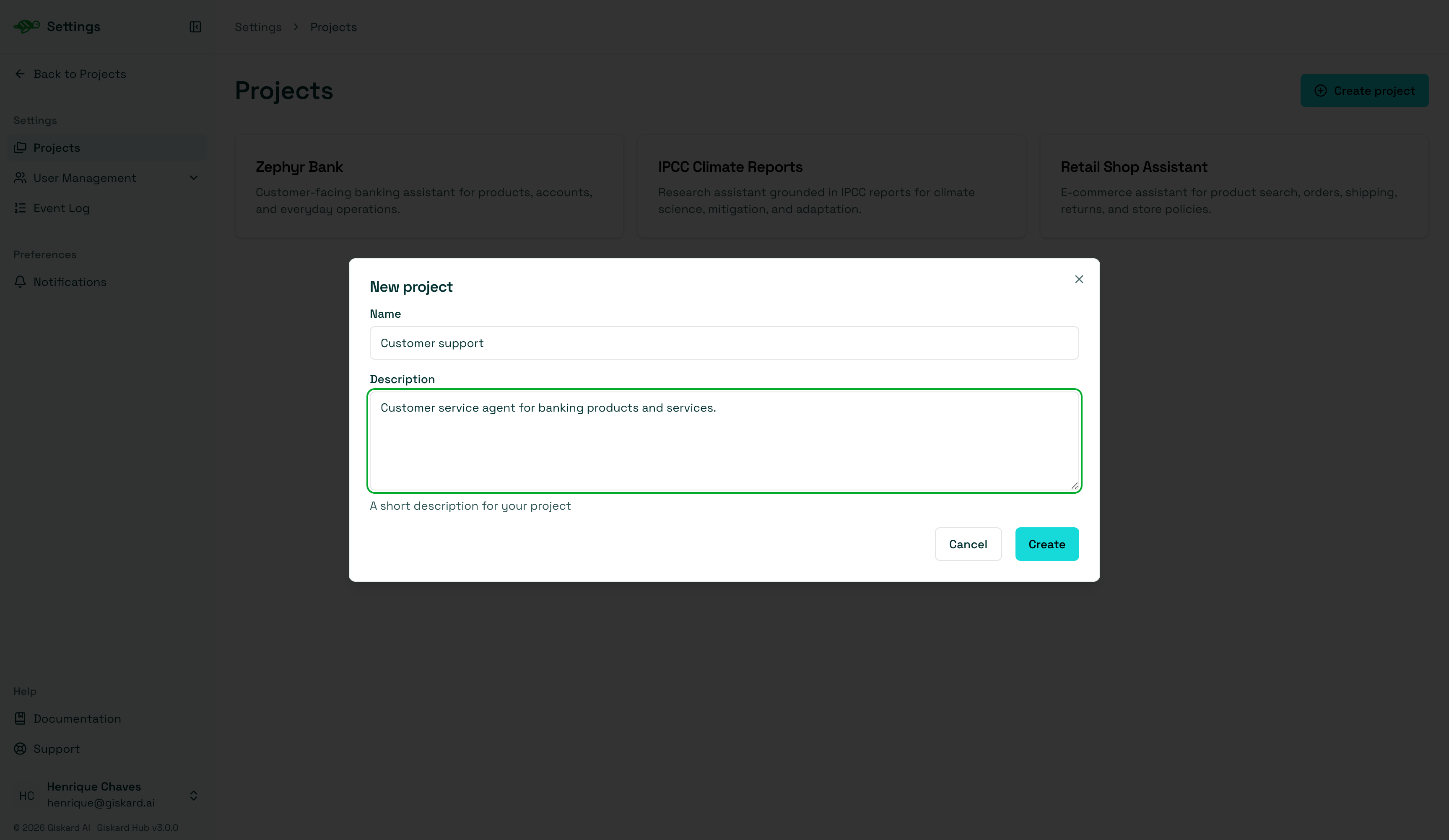
Once the project is created, clicking it in the list opens project settings. Alternatively, use the dropdown menu in the upper left corner of the screen to select the project you want to work on.
Setup an agent
Section titled “Setup an agent”To create an agent, open the Agents page and click “New Agent”.
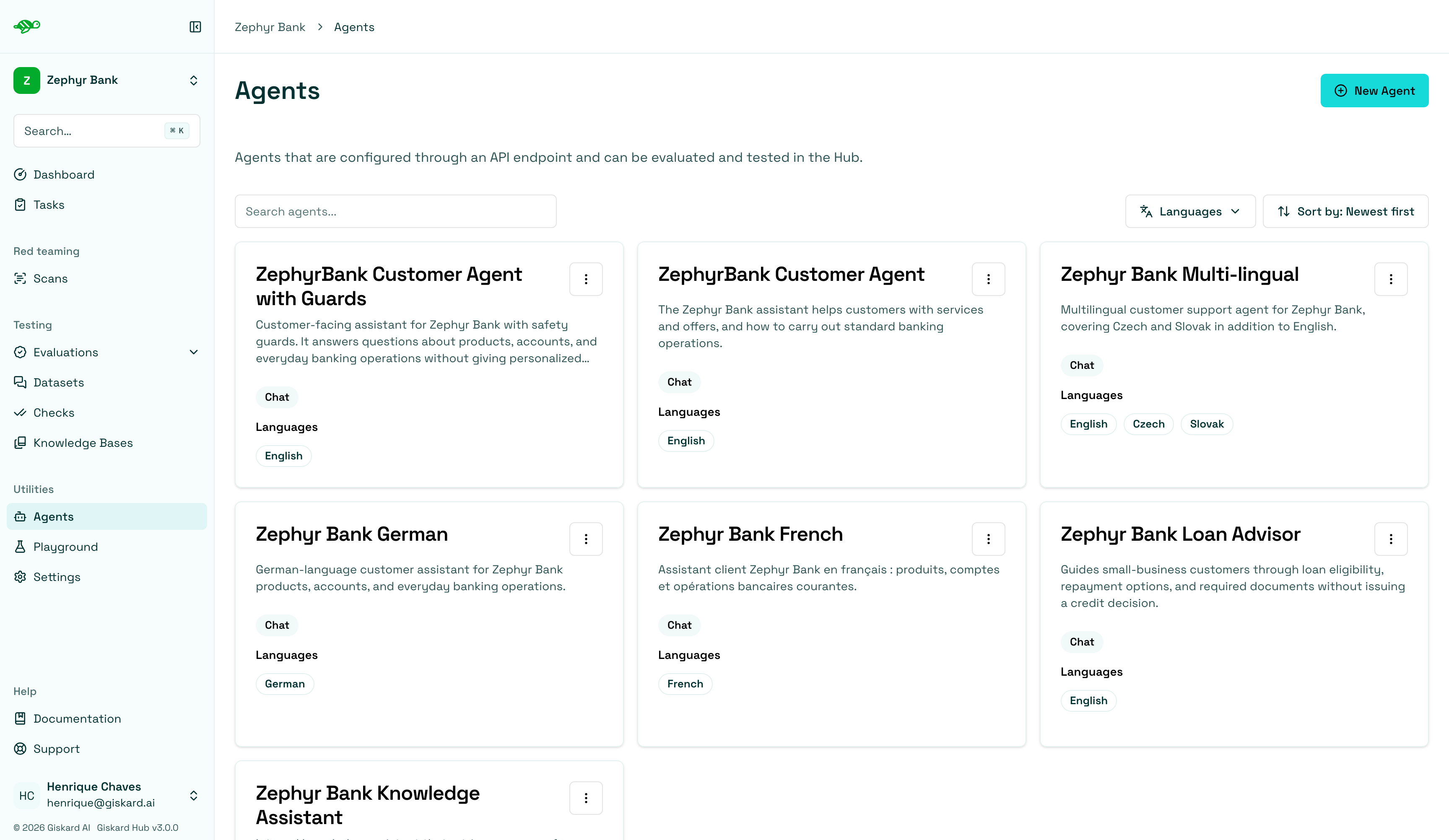
Fill in the agent details:
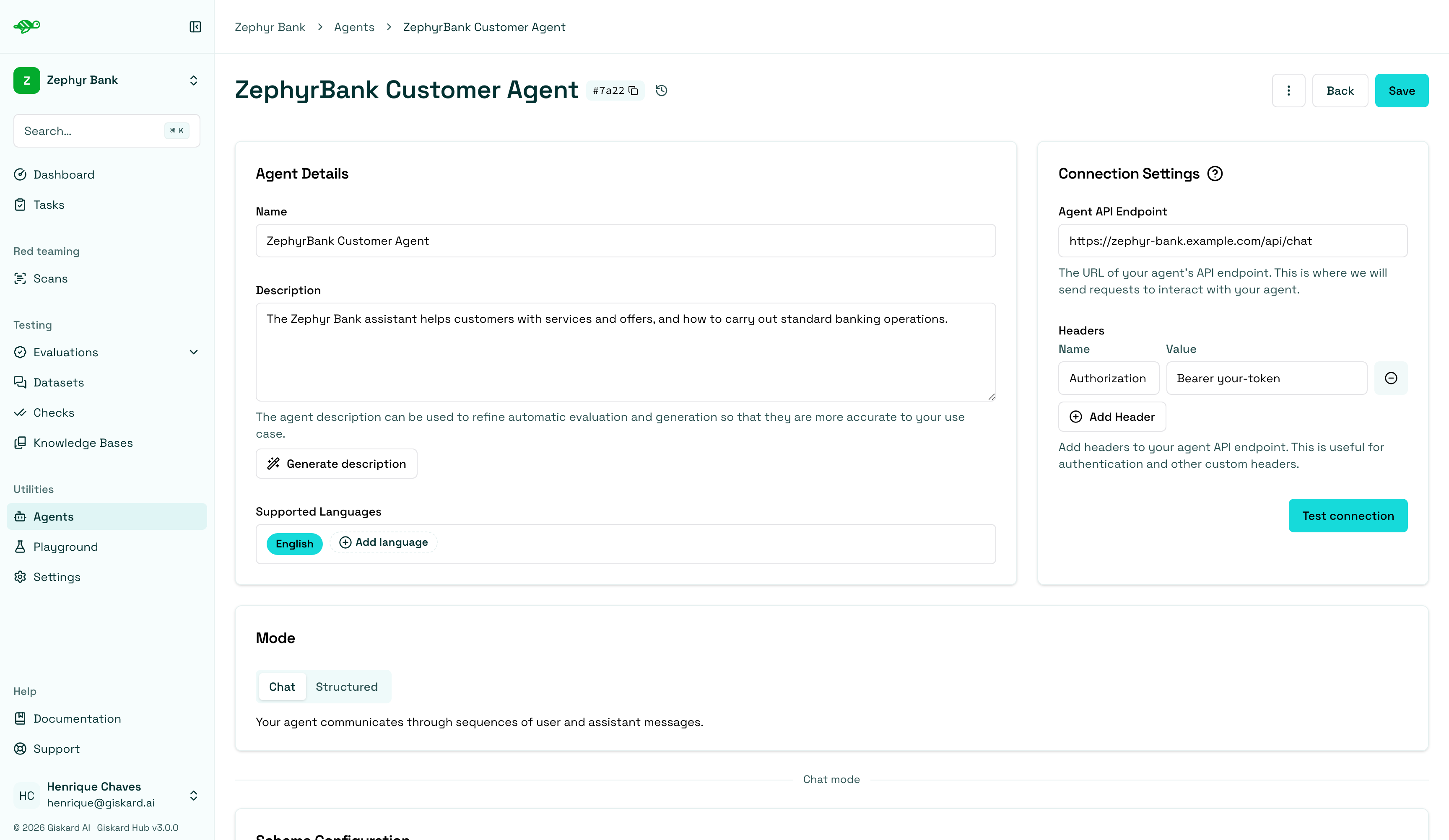
Name: The name of the agent.Description: Used to refine automatic evaluation and generation for better accuracy in your specific use case.Supported Languages: Add the languages your agent can handle. Note that this affects data generation.Connection Settings:Agent API Endpoint: The URL of your agent’s API endpoint. This is where requests are sent to interact with your agent.Headers: These are useful for authentication and other custom headers.
Mode:ChatorStructured. Chat agents send and receive a message list. Structured agents use a custom JSON input and output.
In Chat mode, the endpoint should expect an object with the following structure:
{ "messages": [ {"role": "user", "content": "Hello!"}, {"role": "assistant", "content": "Hello! How can I help you?"}, {"role": "user", "content": "What color is an orange?"}, ]}And the response should have the following structure:
{ "response": {"role": "assistant", "content": "An orange is green"}, "metadata": {"some_key": "whatever value"},}The Hub also supports authenticated endpoints and agents whose native API doesn’t match this canonical shape, and the Giskard team will help you configure these during onboarding. For details on authentication, connecting custom chatbot or structured-agent formats, and chat vs structured agents, see Setup agents.
Import a knowledge base
Section titled “Import a knowledge base”To import a knowledge base, open Knowledge Bases and click “Add Knowledge Base”.
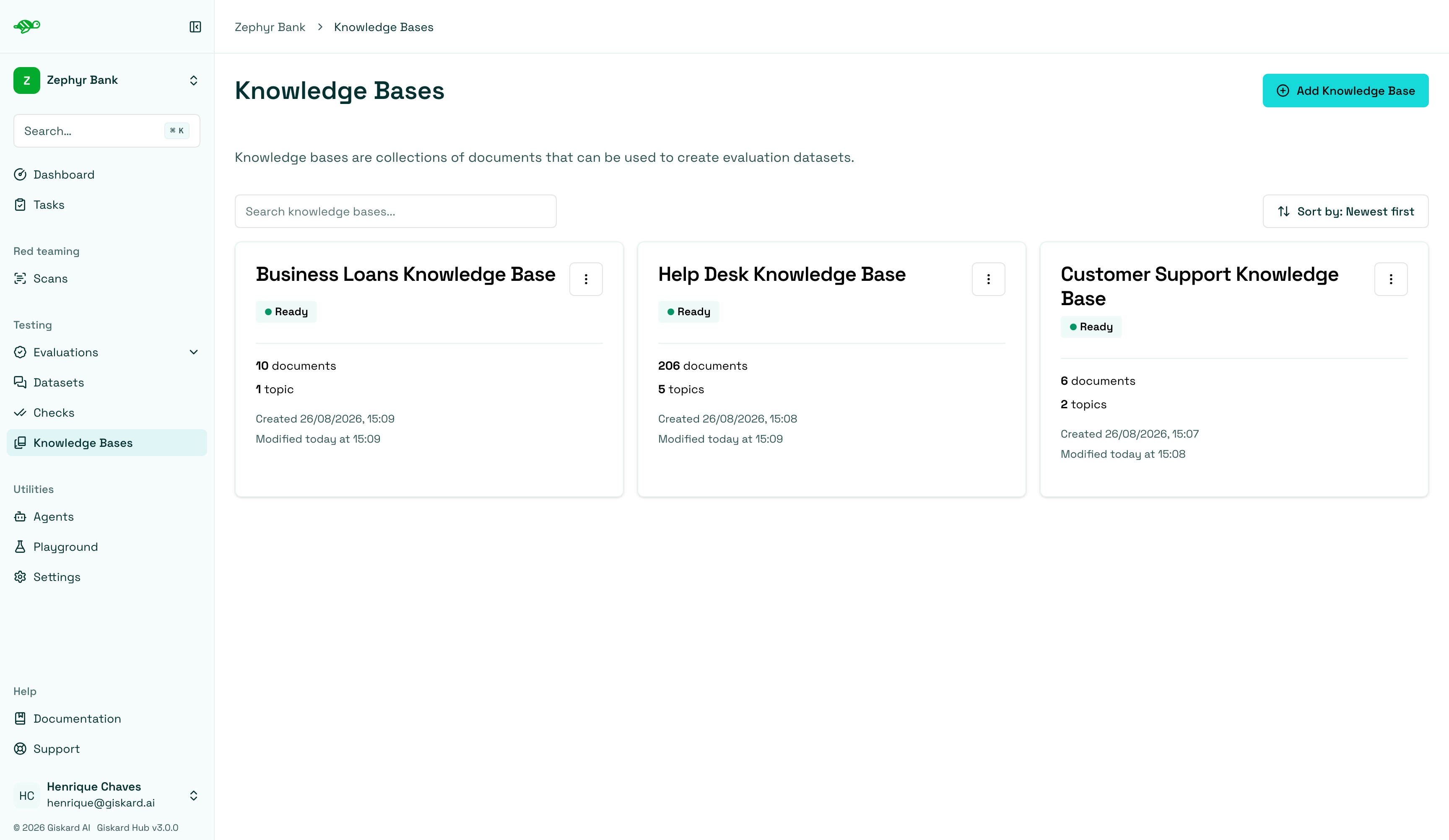
Fill in the knowledge base details:
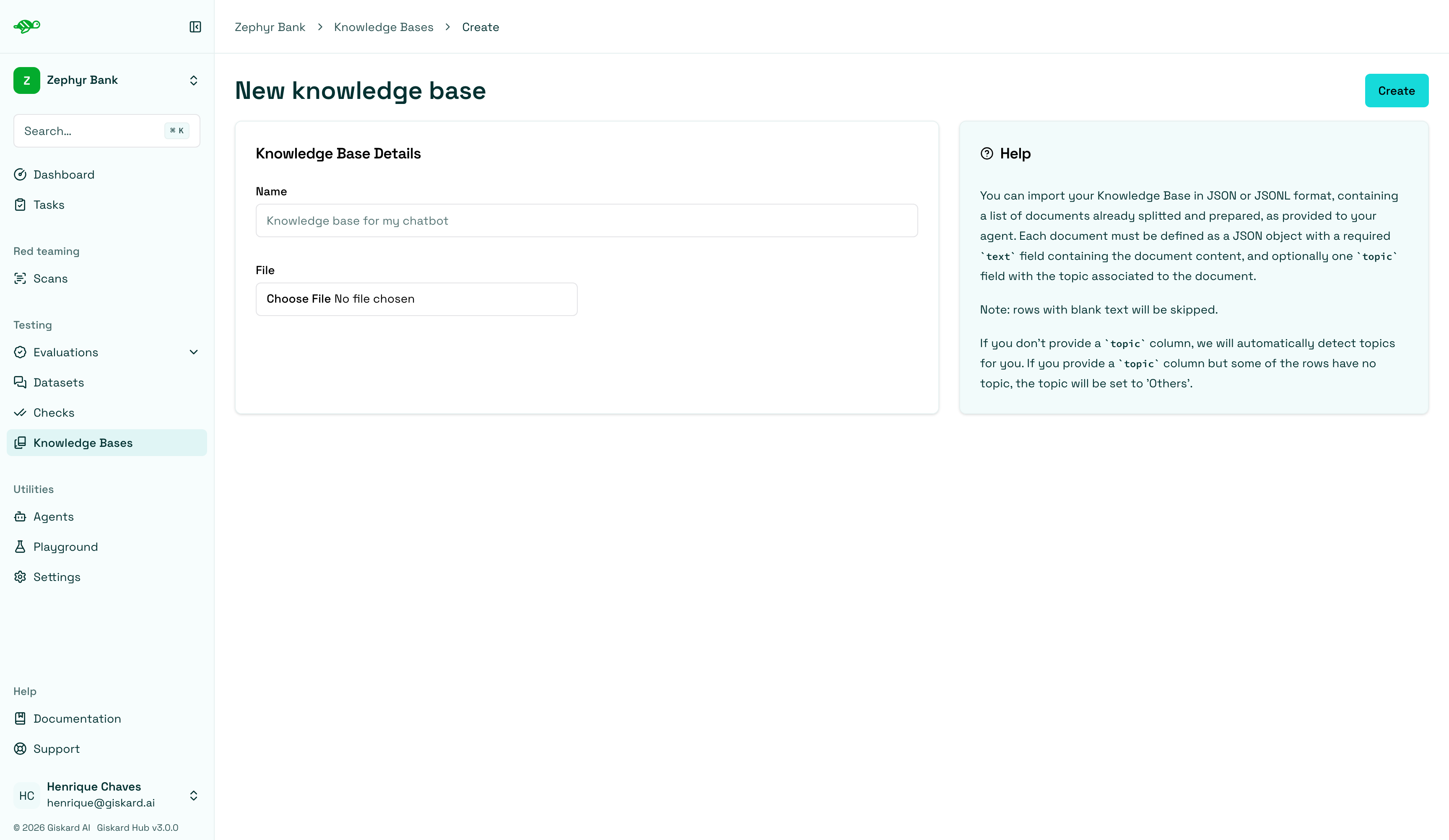
Name: The name of the knowledge base.File: The document to upload, containing the knowledge base content. Supported formats are:- JSON: A JSON file containing an array of objects
- JSONL: A JSON Lines file with one object per line
JSON/JSONL format requirements:
Each object in your JSON or JSONL file should have the following structure:
{ "text": "Your document content here", "topic": "Optional topic classification"}text(required): The document contenttopic(optional): The topic classification for the document
General rules for all formats:
- If the
texthas a value but thetopicis blank, thetopicwill be set to ‘Others’. However, if all topics are blank, thetopicwill be automatically generated. - If both the
textandtopicare blank, or if thetextis blank but thetopichas a value, the entry will not be imported.
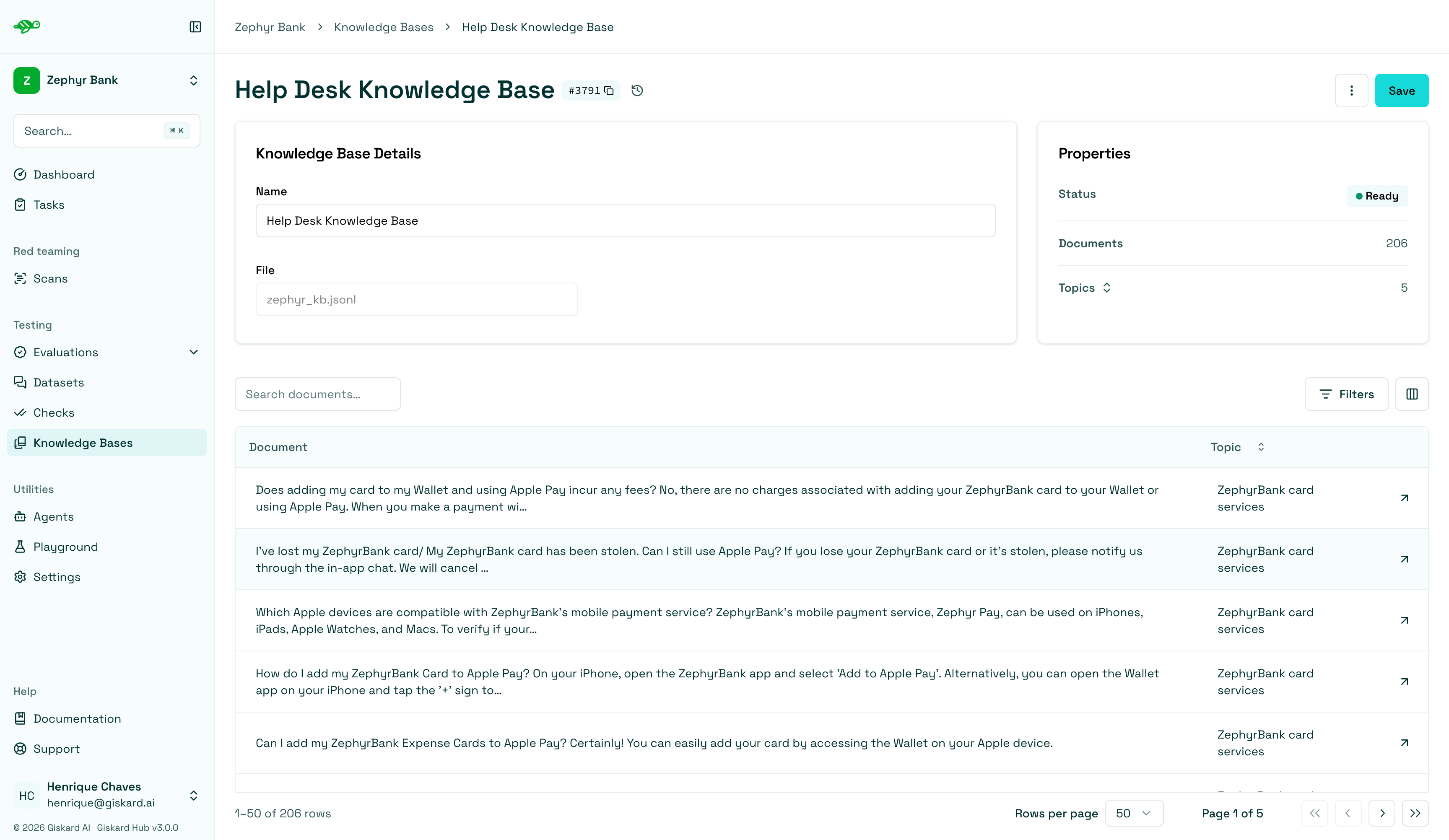
Once imported, the knowledge base shows its documents and topics. If no topics were uploaded, Giskard Hub identifies and generates them. In the example below, the knowledge base is ready with 206 documents and 5 topics.
Need help?
Section titled “Need help?”- Documentation: Browse the Hub UI guides for step-by-step walkthroughs
- Community: Join our Discord ↗ for support and discussions
- Enterprise: Need on-premise deployment or dedicated support? Contact us ↗