

Setup agents
Agents are configured through an API endpoint. They can be scanned for vulnerabilities and evaluated against datasets.
To create an agent in the UI, open the Agents page and click “New Agent”.
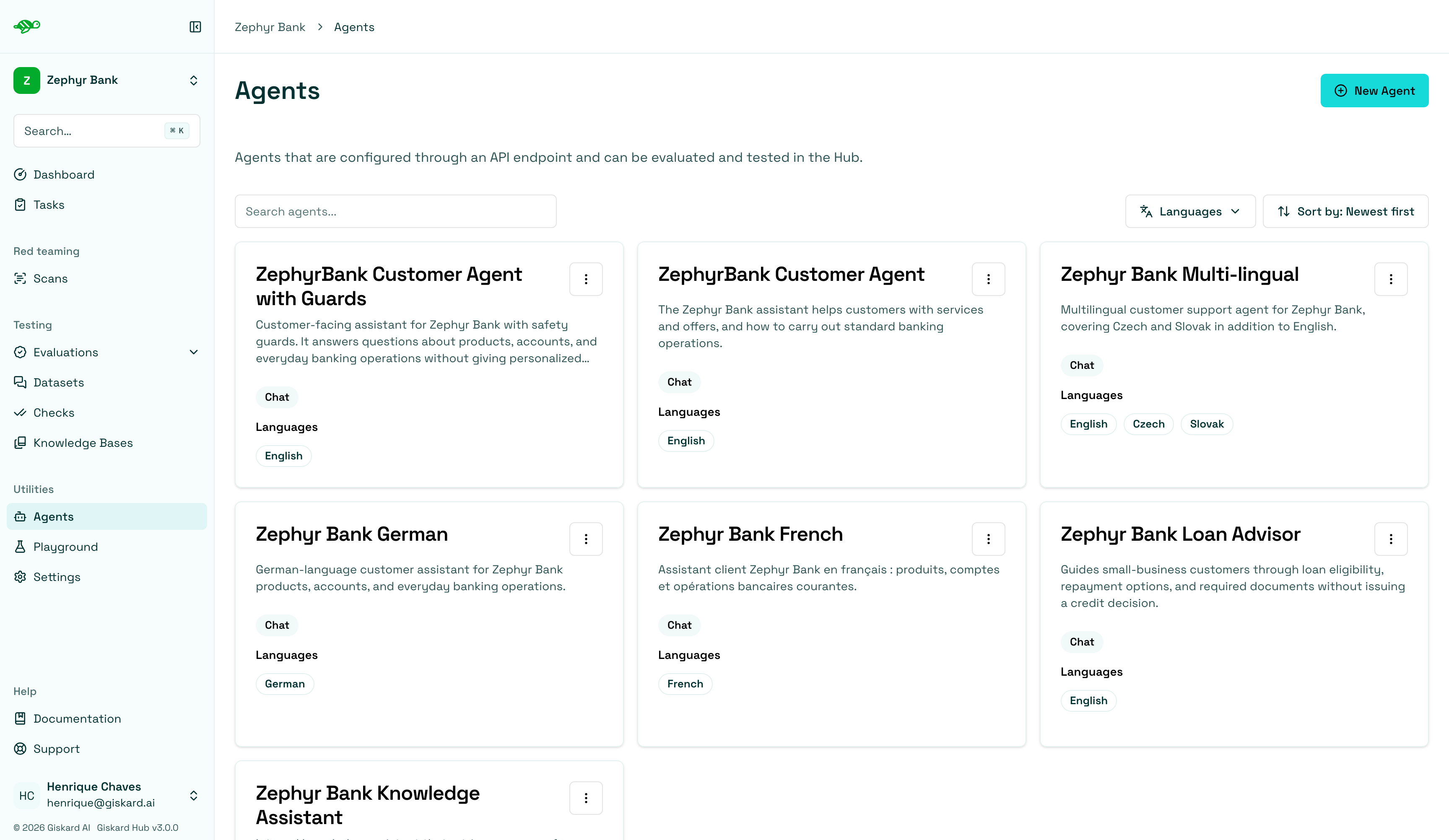
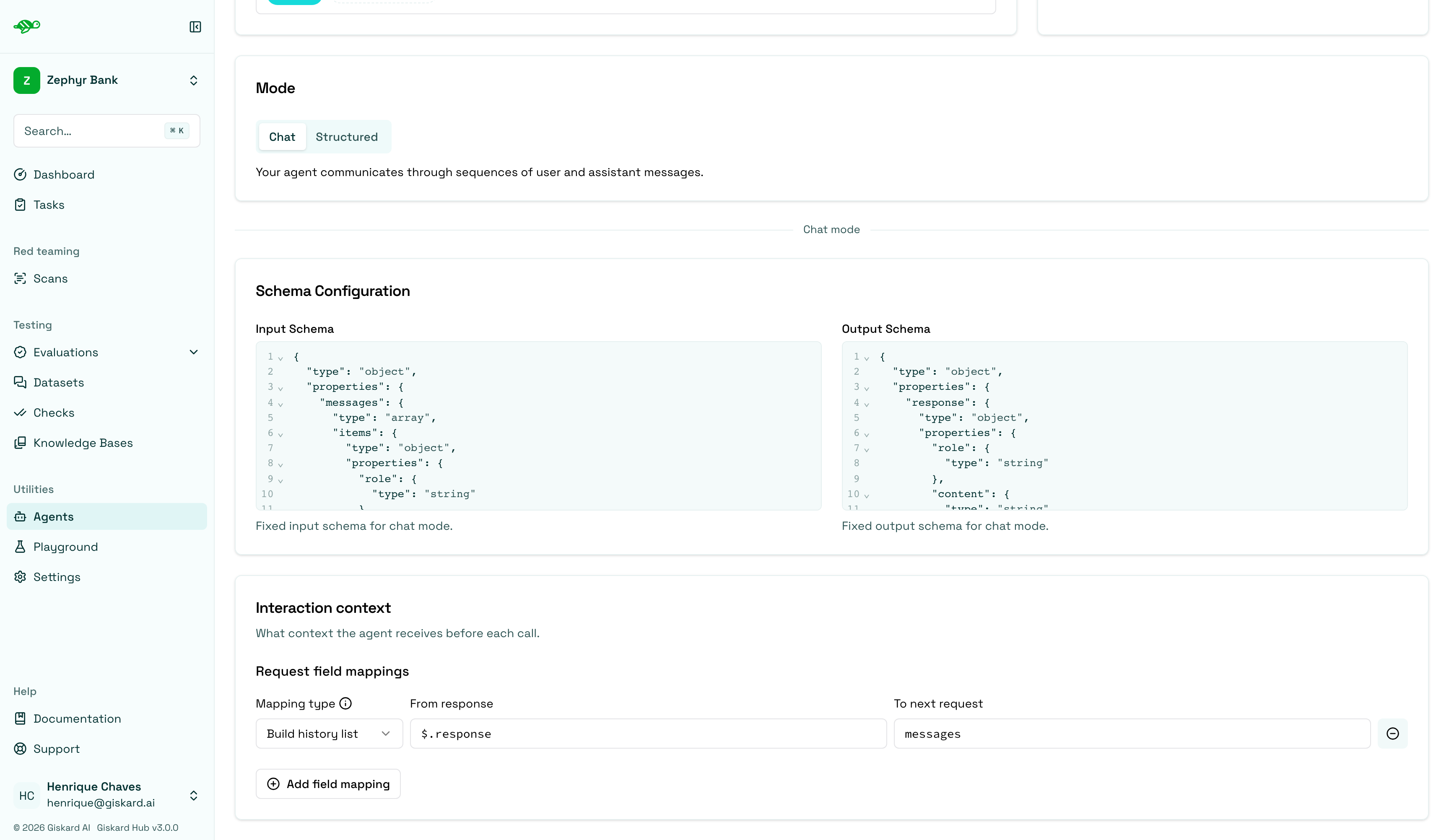
Fill in the agent details. Every agent has a Mode: Chat for conversational message lists, or Structured for a custom JSON request and response.
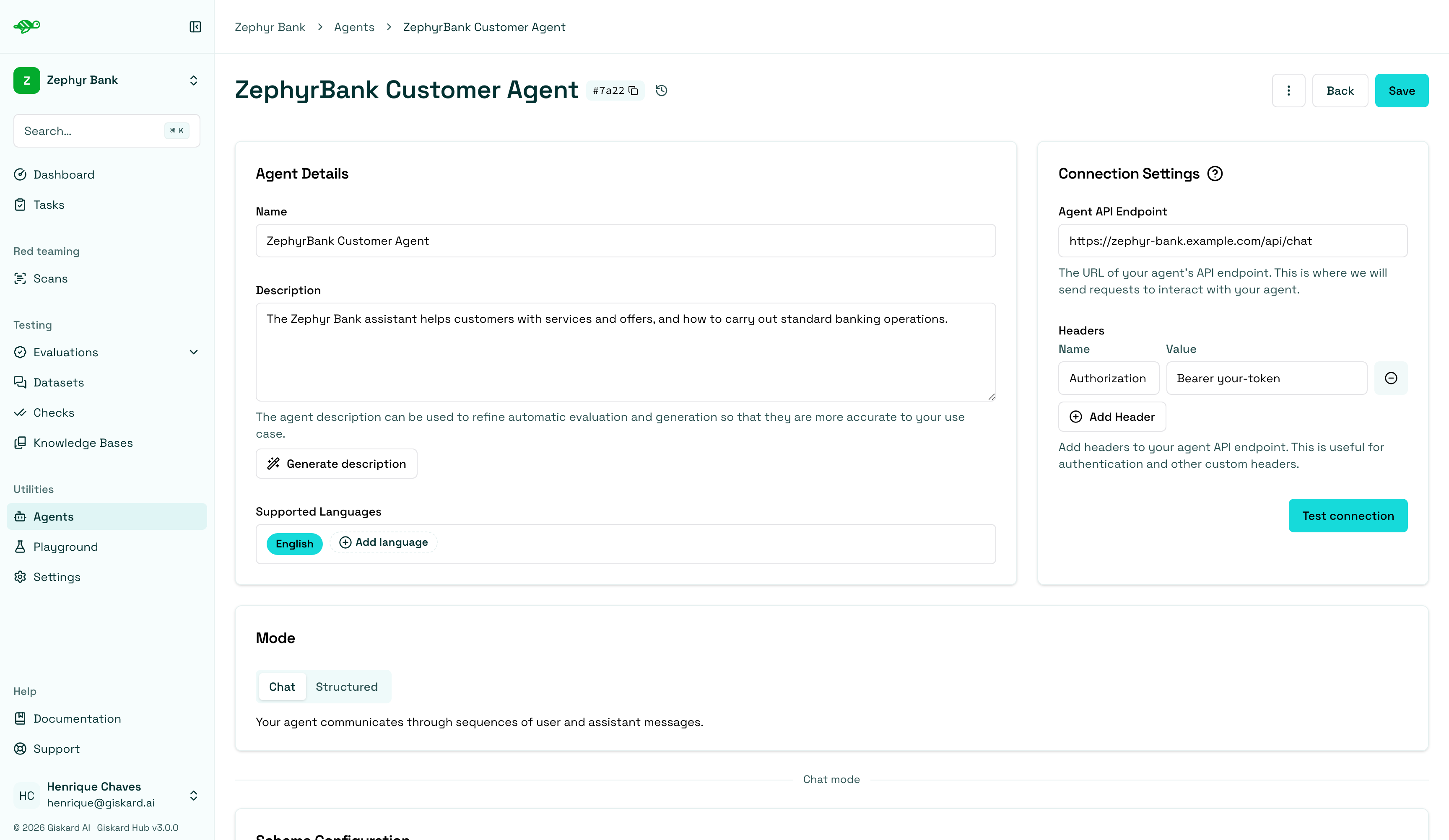
Name: The name of the agent.Description: Used to refine automatic evaluation and generation for better accuracy in your specific use case.Supported Languages: Add the languages your agent can handle. This affects data generation.Connection Settings:Agent API Endpoint: The URL the Hub POSTs to during scans, evaluations, and playground calls.Headers: Authentication and other custom headers sent with every request.Test connection: Sends a sample payload that matches the current schemas.
Mode:ChatorStructured. Switching mode clears the current schema and all request field mappings.
Chat agents
Section titled “Chat agents”Use Chat for LLM-based chatbots, RAG assistants, and any agent that exchanges a list of messages.
The Hub POSTs a JSON body with a messages array:
{ "messages": [ { "role": "user", "content": "Hello!" }, { "role": "assistant", "content": "Hello! How can I help you?" }, { "role": "user", "content": "What color is an orange?" } ]}The endpoint must return a JSON object with a response message. metadata is optional:
{ "response": { "role": "assistant", "content": "An orange is orange." }, "metadata": { "category": "general" }}Chat agents start with a default Build history list mapping so later turns receive the full conversation. Remove it if the endpoint should see only the current user message.
Structured agents
Section titled “Structured agents”Use Structured when the application is not a chatbot: classifiers, extractors, scoring APIs, routing services, or any endpoint that accepts and returns typed JSON.
Select Structured in Mode. The Hub warns that switching clears the current schema and all bindings, then replaces the chat schemas with empty JSON Schema objects you edit yourself.
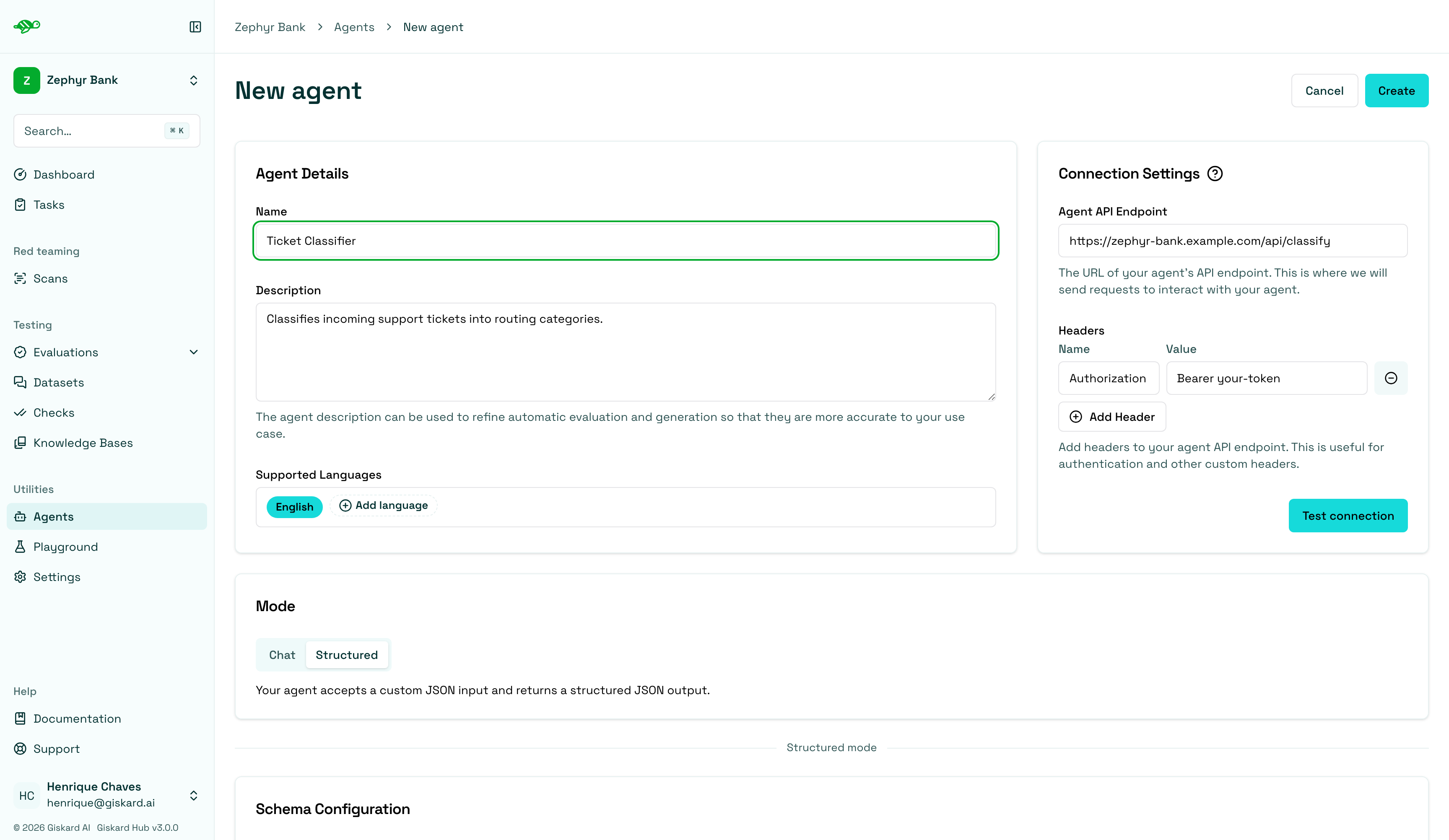
Schema configuration
Section titled “Schema configuration”Input Schema and Output Schema are JSON Schema documents. They describe the JSON body the Hub POSTs and the JSON body it expects back.
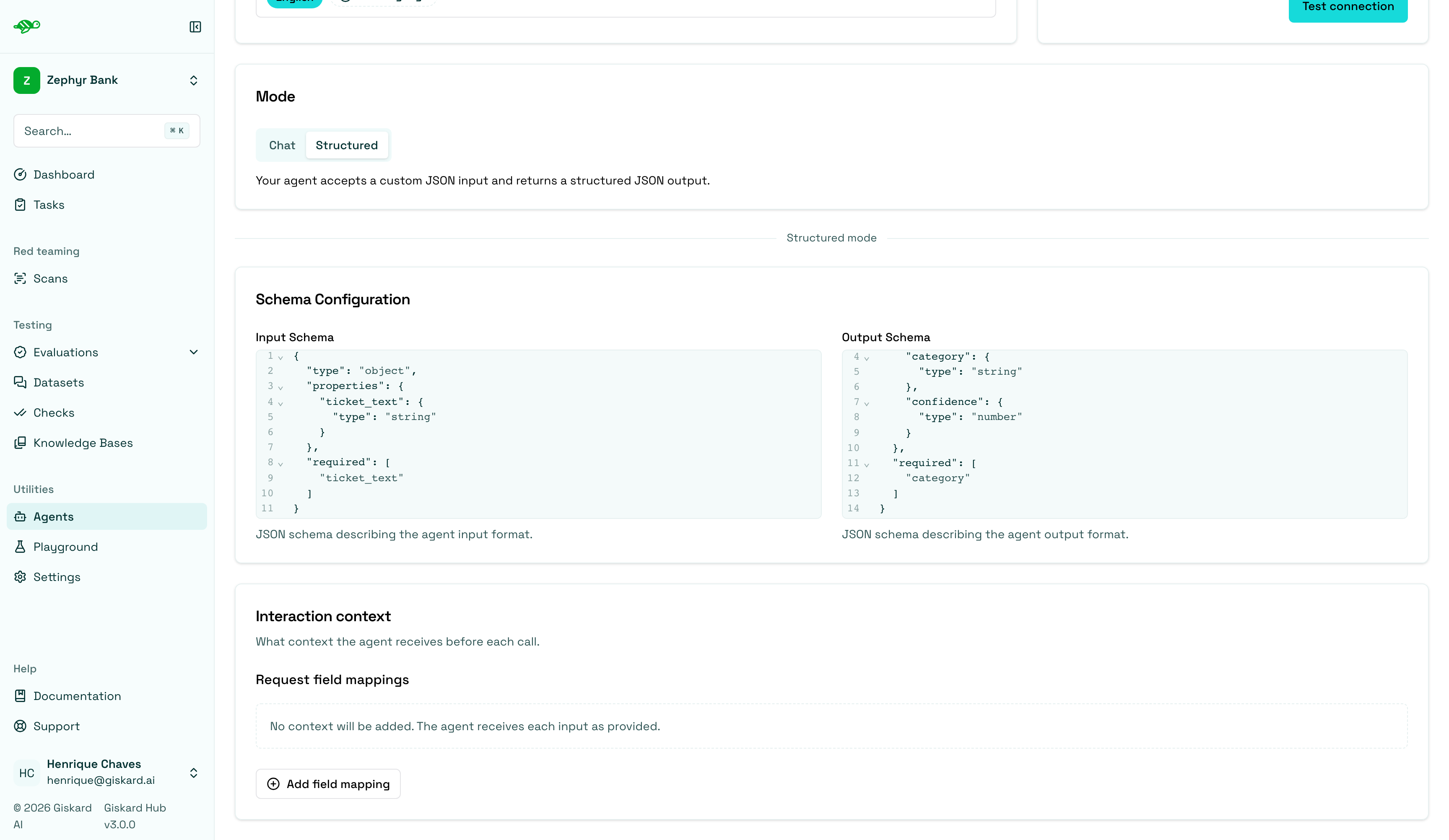
Scenarios, dataset generation, and playground calls all use these schemas. Keep them accurate so generated data and checks match the live API.
A support-ticket router. The Hub POSTs the ticket text and expects a category.
Input Schema
{ "type": "object", "properties": { "ticket_text": { "type": "string" } }, "required": ["ticket_text"]}Output Schema
{ "type": "object", "properties": { "category": { "type": "string" }, "confidence": { "type": "number" } }, "required": ["category"]}Example request
{ "ticket_text": "My debit card was charged twice for the same ATM withdrawal."}Example response
{ "category": "card_dispute", "confidence": 0.91}A scoring endpoint with several typed fields.
Input Schema
{ "type": "object", "properties": { "loan_id": { "type": "string" }, "amount": { "type": "number" }, "customer_segment": { "type": "string" } }, "required": ["loan_id", "amount"]}Output Schema
{ "type": "object", "properties": { "decision": { "type": "string" }, "score": { "type": "number" }, "reasons": { "type": "array", "items": { "type": "string" } } }, "required": ["decision", "score"]}Example request
{ "loan_id": "abc-123", "amount": 5000, "customer_segment": "retail"}Example response
{ "decision": "approved", "score": 0.92, "reasons": ["income_verified", "low_utilization"]}An extraction pipeline that returns structured fields from a document.
Input Schema
{ "type": "object", "properties": { "document": { "type": "string" }, "locale": { "type": "string" } }, "required": ["document"]}Output Schema
{ "type": "object", "properties": { "entities": { "type": "array", "items": { "type": "object", "properties": { "type": { "type": "string" }, "value": { "type": "string" } }, "required": ["type", "value"] } }, "summary": { "type": "string" } }, "required": ["entities"]}Example request
{ "document": "Policyholder Jane Doe, policy ZB-2044, claims flood damage on 12 March.", "locale": "en"}Example response
{ "entities": [ { "type": "person", "value": "Jane Doe" }, { "type": "policy_id", "value": "ZB-2044" } ], "summary": "Flood-damage claim for policy ZB-2044."}The same shapes appear in scenario input and output fields, so a dataset built for this agent stays compatible with scans and evaluations.
Interaction context
Section titled “Interaction context”Interaction context controls what the Hub adds to each request from previous turns. Configure it with Request field mappings under the schema editors.
Chat agents default to one mapping that rebuilds the conversation. Structured agents start with none: each call receives only the current input.
| Mapping type | What it does | Typical use |
|---|---|---|
| Build history list | Appends each turn to a running list in the next request | Stateless chat endpoints that need the full messages array |
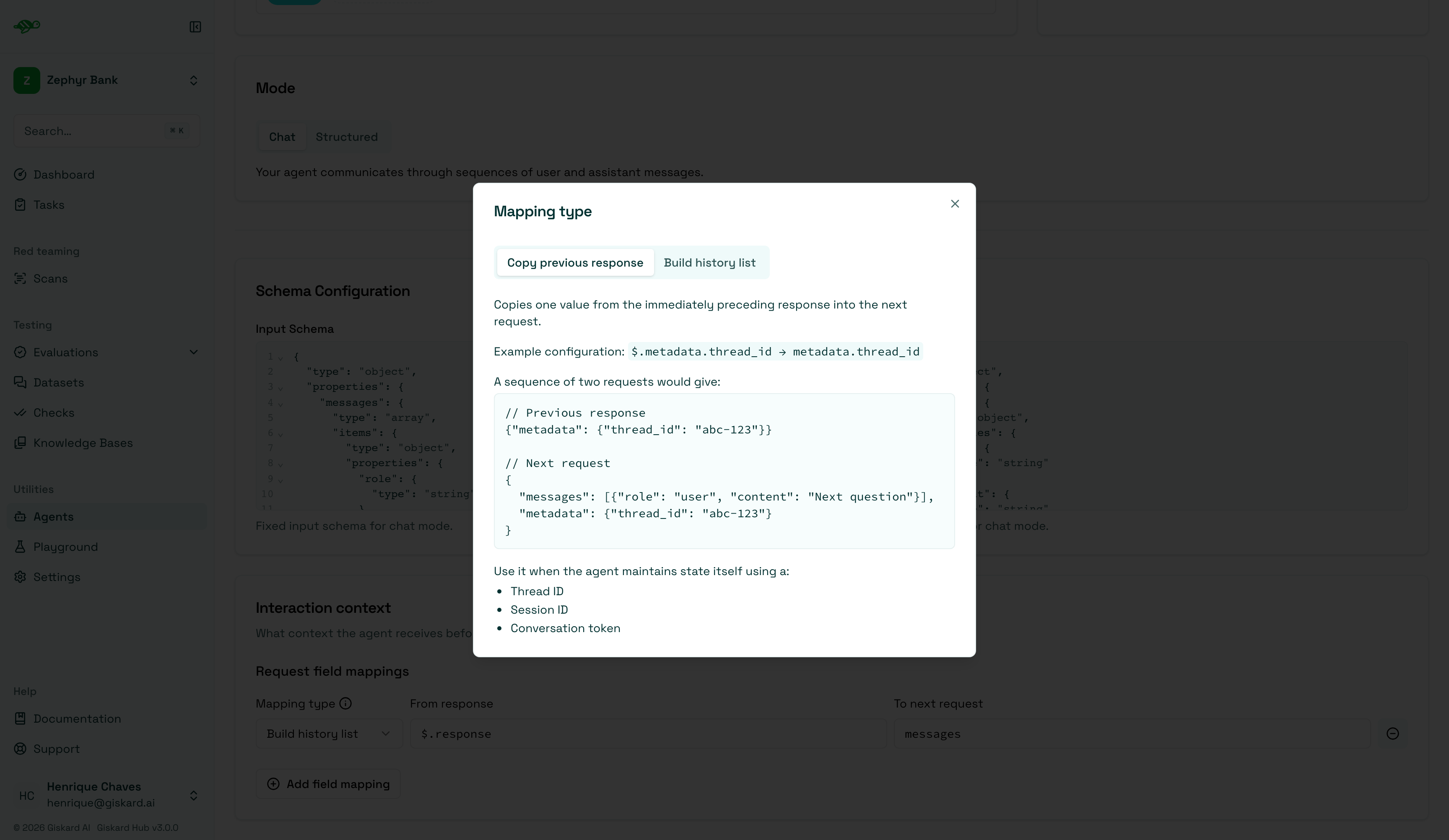
| Copy previous response | Copies one value from the previous response into the next request | Thread IDs, session IDs, or conversation tokens the agent stores itself |
Build history list
Section titled “Build history list”Default Chat mapping: From response $.response → To next request messages.
The second request becomes:
{ "messages": [ { "role": "user", "content": "First question" }, { "role": "assistant", "content": "First answer" }, { "role": "user", "content": "Second question" } ]}Use this when the endpoint is stateless and expects the caller to resend the interaction history.
Copy previous response
Section titled “Copy previous response”Example: From response $.metadata.thread_id → To next request metadata.thread_id.
Previous response:
{ "metadata": { "thread_id": "abc-123" } }Next request:
{ "messages": [{ "role": "user", "content": "Next question" }], "metadata": { "thread_id": "abc-123" }}Use this when the agent maintains state itself with a thread ID, session ID, or conversation token. On the first turn the Hub does not send that field; the agent should create it and return it so later turns can copy it forward.
Authentication
Section titled “Authentication”The Giskard Hub authenticates against your agent by sending HTTP headers with every request. Add any header your agent’s authentication scheme requires under Connection Settings → Headers.
Two common patterns:
- Bearer token (for example, issued by your identity provider):
- Name:
Authorization - Value:
Bearer <your-token>
- Name:
- API key (for example, for an internal gateway):
- Name:
X-API-Key - Value:
<your-token>
- Name:
You can add multiple headers if your endpoint requires more than one (for example, a tenant identifier alongside the token).
If you need help wiring up authentication for your agent, the Giskard team will configure it with you during onboarding.
SSL / custom CA
Section titled “SSL / custom CA”If your agent is served behind a private or self-signed certificate authority (CA), the Hub can be configured to trust it. This is set up at Hub installation time and applies across all agents in the deployment, rather than being configurable per-agent on the form.
Connecting a custom API
Section titled “Connecting a custom API”The Hub calls the endpoint with the Chat or Structured contract above. If the native API uses a different format, a small translation adapter can sit alongside the Hub and convert between that format and the Hub’s request and response shape.
From the agent form’s point of view, nothing changes. The Agent API Endpoint is set to the adapter’s URL, and the Hub interacts with the adapter as if it were the agent itself.
If the API uses a non-standard format, the Giskard team will set up the adapter with you during onboarding.
Rate limiting
Section titled “Rate limiting”If your agent has rate limits (for example, a maximum number of requests per minute or a cap on concurrent connections), the Hub can be configured to respect them so evaluations and scans don’t trigger throttling or back-pressure your infrastructure. These limits are configured at Hub installation time, not per-agent on the form.
Next steps
Section titled “Next steps”- Setup knowledge bases - Setup knowledge bases
- Manage users and groups - Manage users and groups
- Create scenarios and datasets - Create scenarios and datasets
- Launch vulnerability scans - Launch vulnerability scans