

Setup knowledge bases
To import a knowledge base, open Knowledge Bases and click “Add Knowledge Base”.
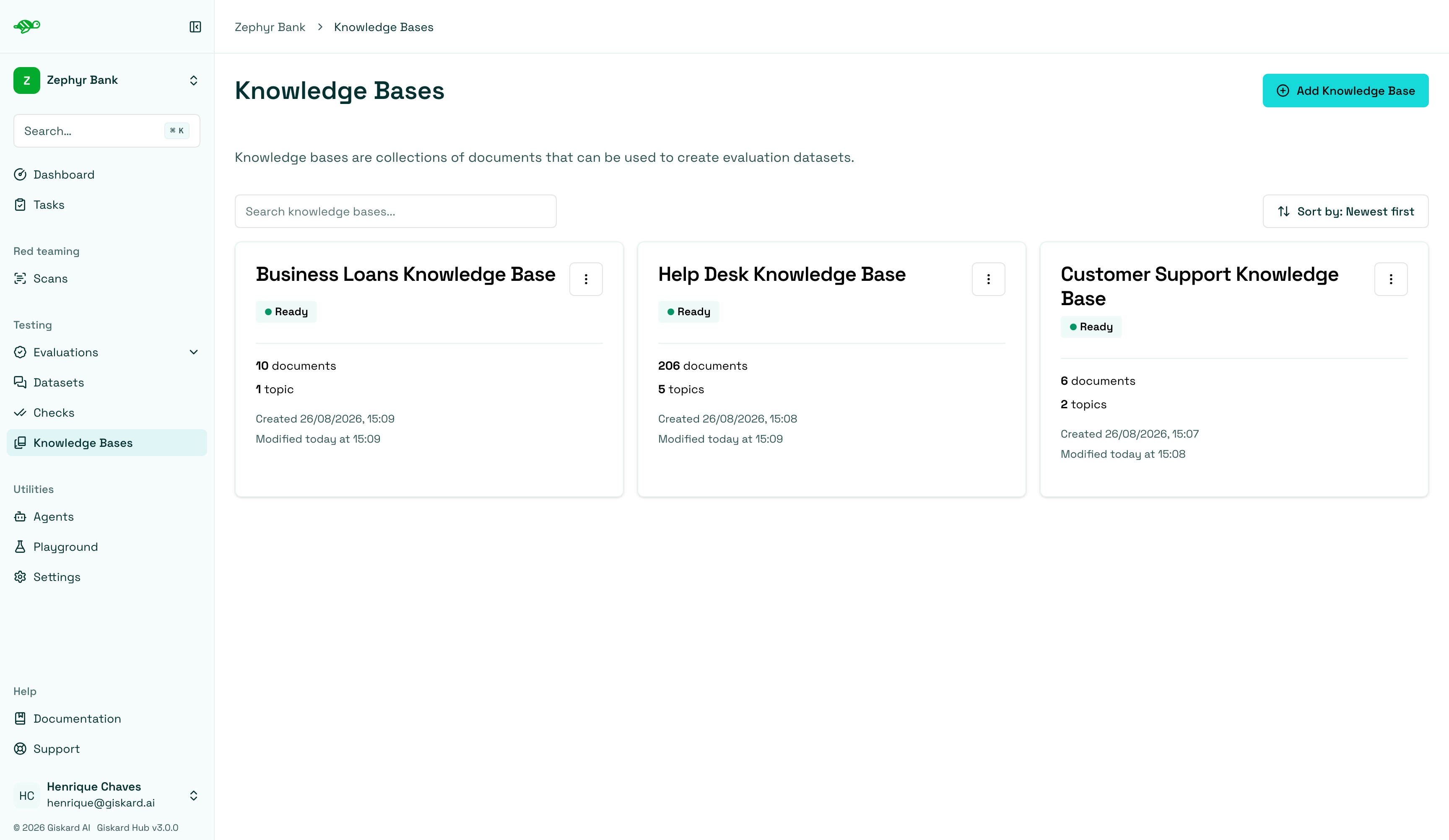
Fill in the knowledge base details:
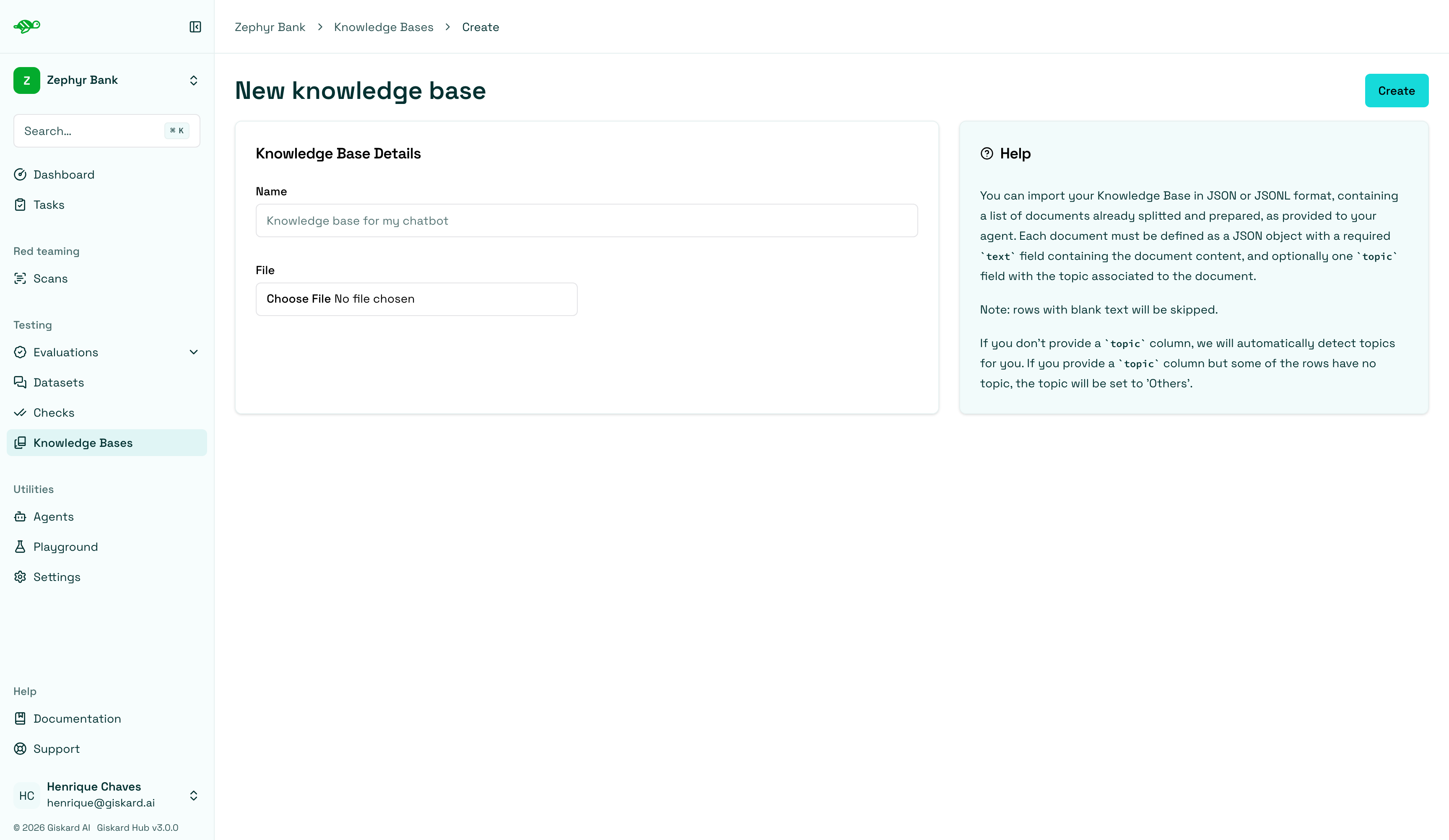
Name: The name of the knowledge base.File: The document to upload, containing the knowledge base content. Supported formats are:- JSON: A JSON file containing an array of objects
- JSONL: A JSON Lines file with one object per line
File formats
Section titled “File formats”Each object in your JSON or JSONL file should have the following structure:
{ "text": "Your document content here", "topic": "Optional topic classification"}text(required): The document contenttopic(optional): The topic classification for the document
Validation rules
Section titled “Validation rules”- If the
texthas a value but thetopicis blank, thetopicwill be set to ‘Others’. However, if all topics are blank, thetopicwill be automatically generated. - If both the
textandtopicare blank, or if thetextis blank but thetopichas a value, the entry will not be imported.
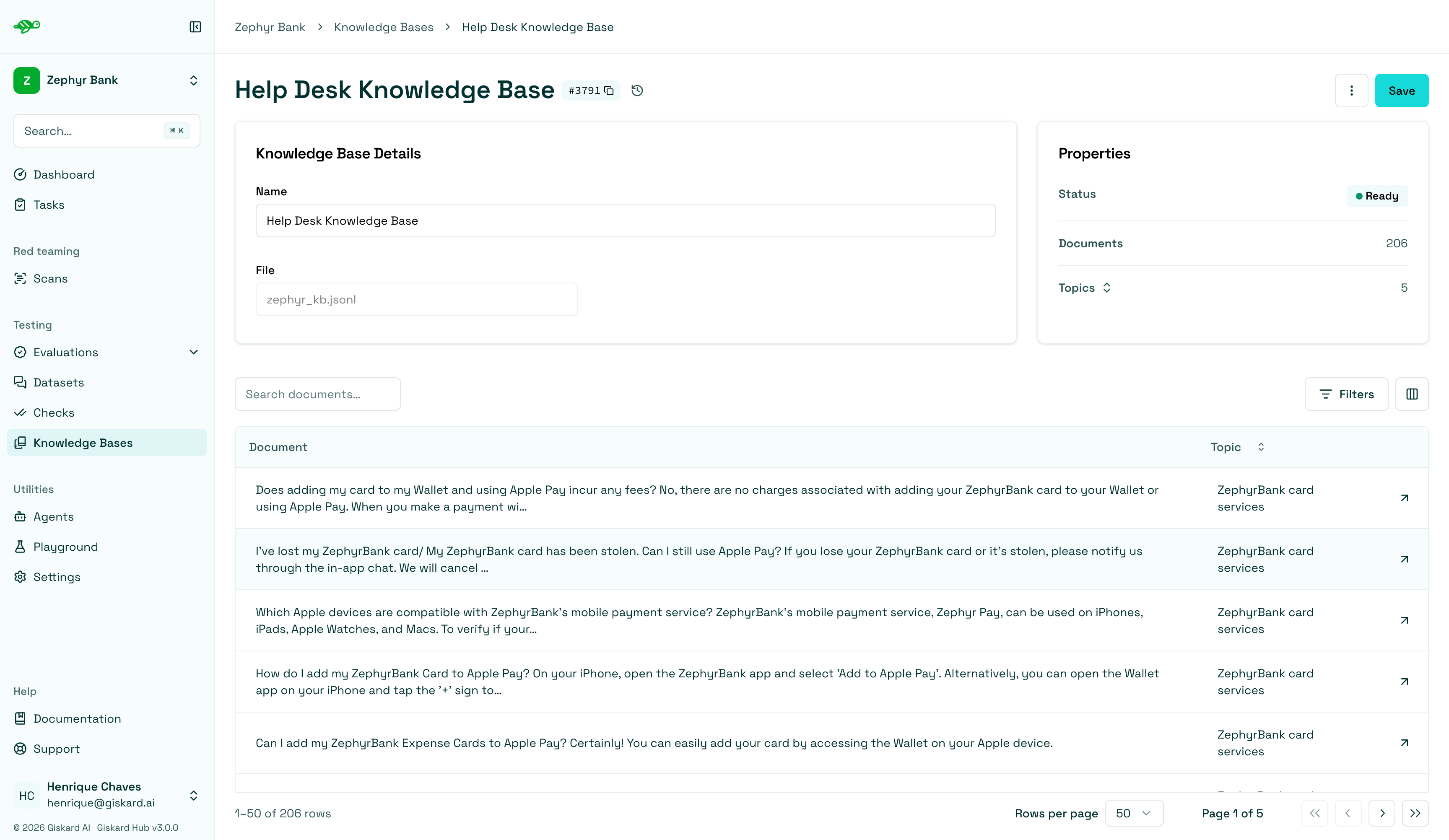
Once imported, the knowledge base shows its documents and topics. If no topics were uploaded, Giskard Hub identifies and generates them. In the example below, the knowledge base is ready with 206 documents and 5 topics.
Next steps
Section titled “Next steps”- Setup agents - Setup agents
- Manage users and groups - Manage users and groups
- Create scenarios and datasets - Create scenarios and datasets
- Launch vulnerability scans - Launch vulnerability scans