User Management
This section provides guidance on managing users in the Hub.
The Hub allows you to set access rights at two levels: global and scoped for both users and groups. To begin, click on the “Settings” icon on the left panel, then open User Management.
Configure users and groups
Section titled “Configure users and groups”To manage user-level permissions, click the Settings icon in the left panel, open User Management, then select Users.
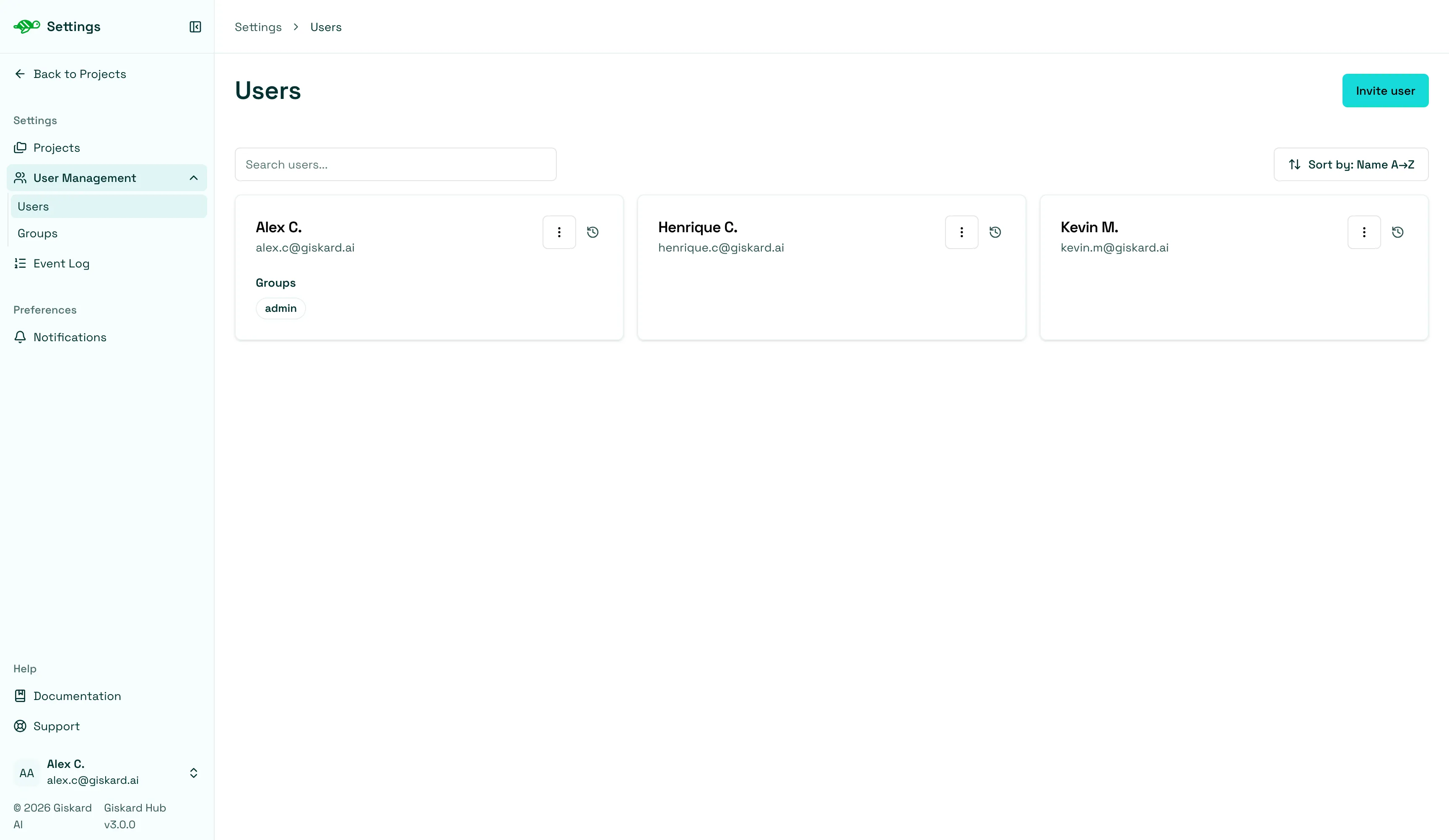
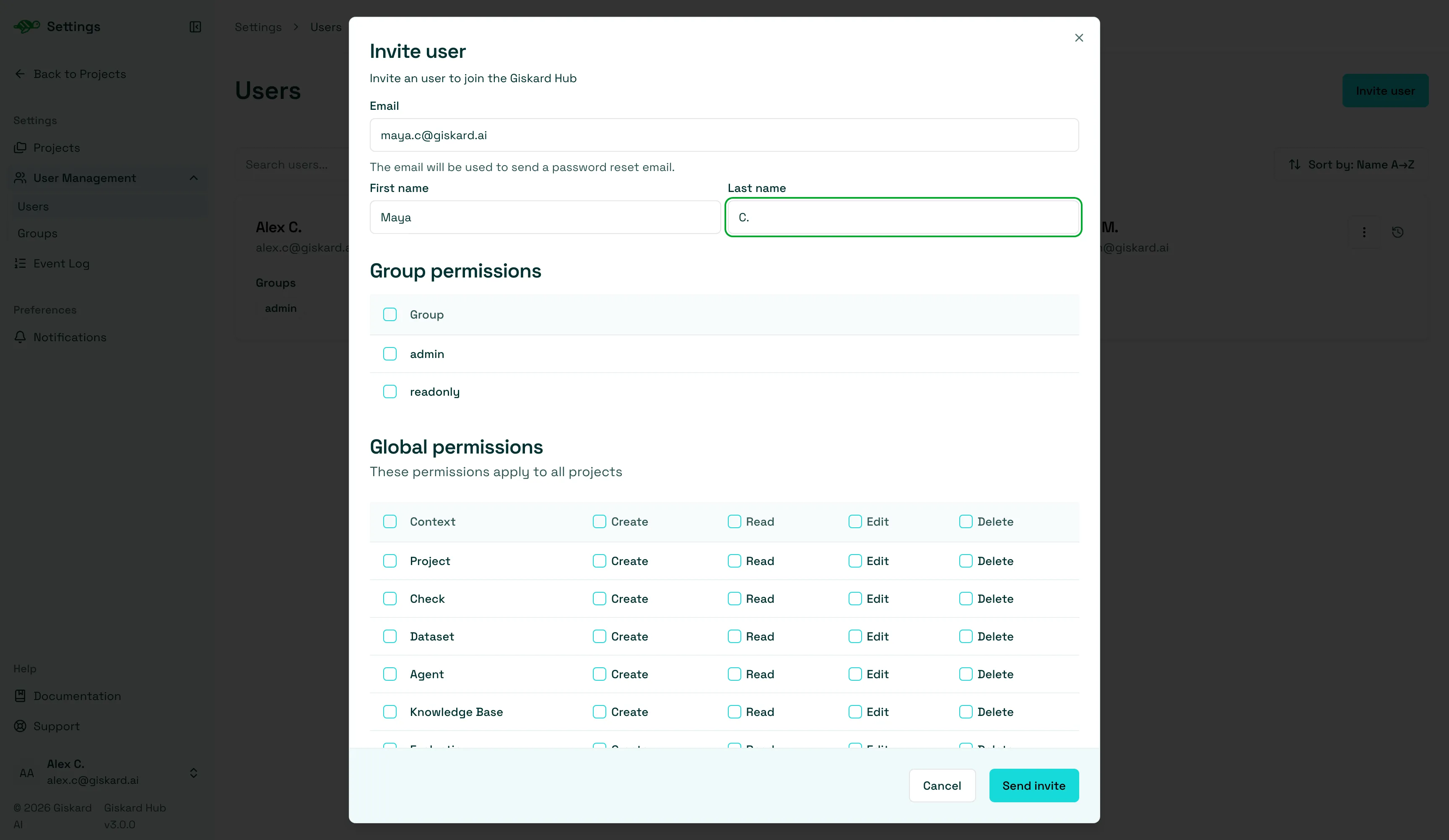
From Invite user, you can assign groups and global or scoped permissions before the person logs in. You can still change them later from the user card.
To manage group-level permissions, click the Settings icon in the left panel, open User Management, then select Groups.
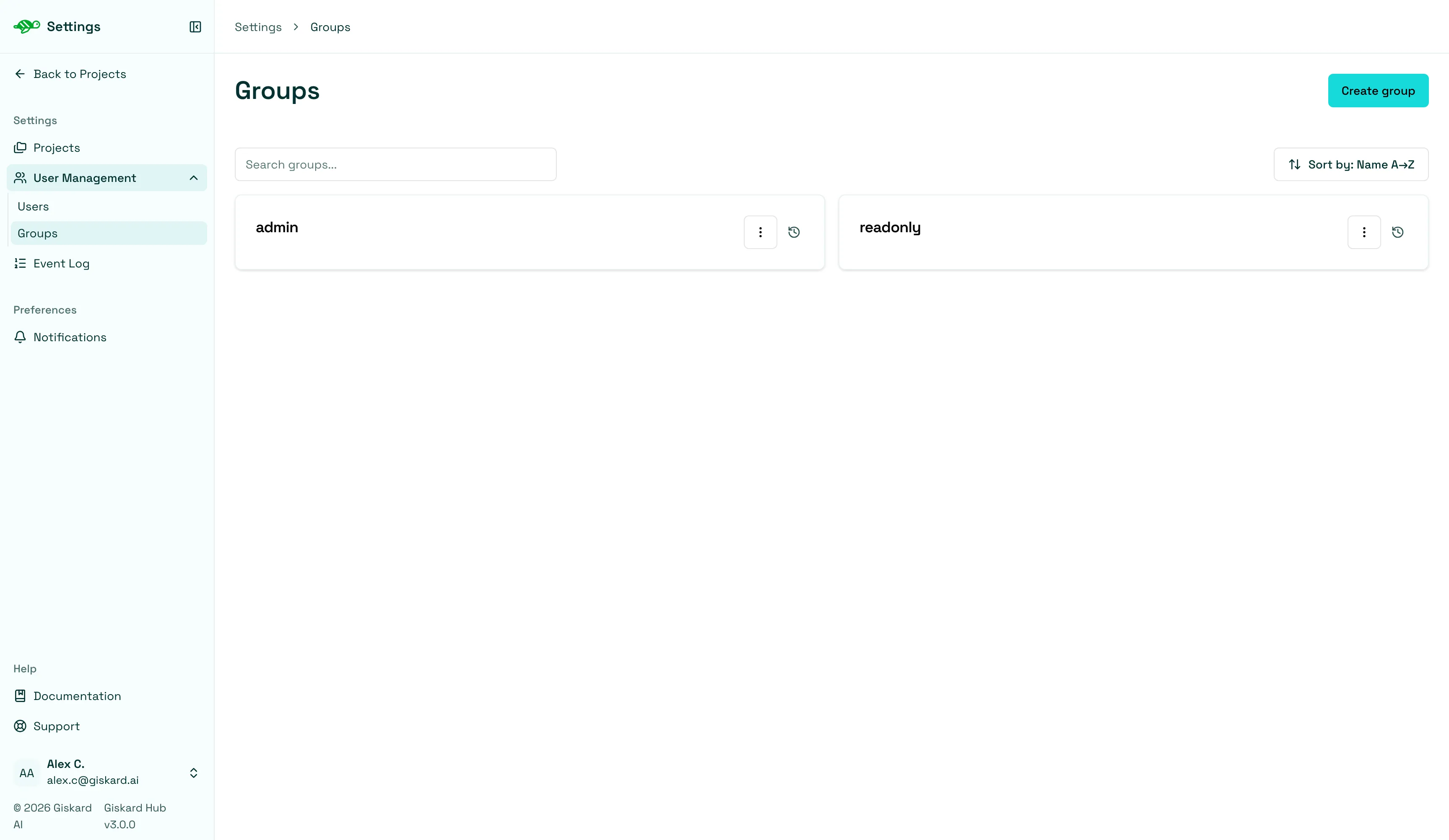
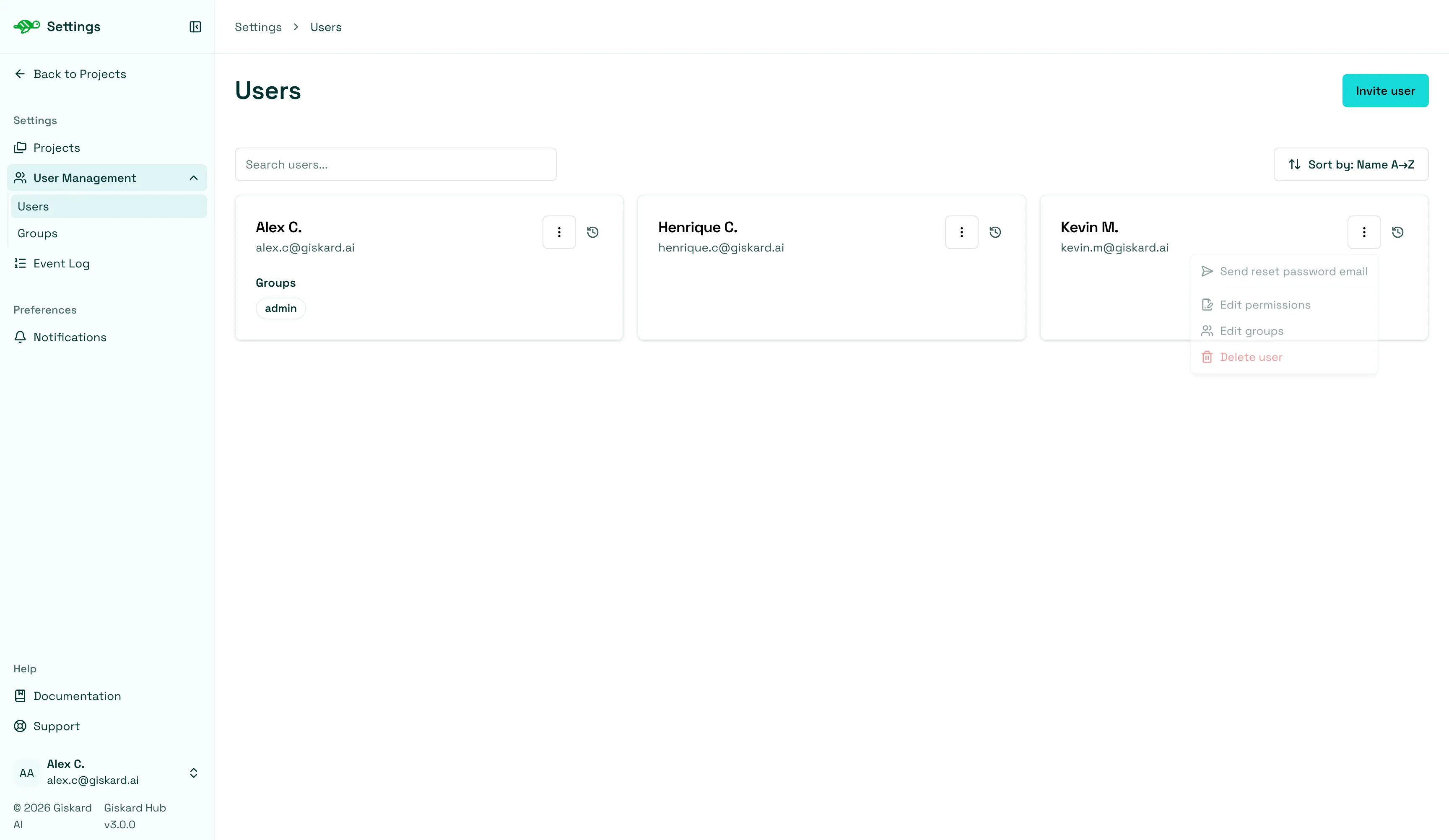
After creating a group and users, you can then navigate back to the Users tab from the left panel. You can then select a user you want to add to a group, click the three vertical dots on the right side of the user box, and click on Edit groups.
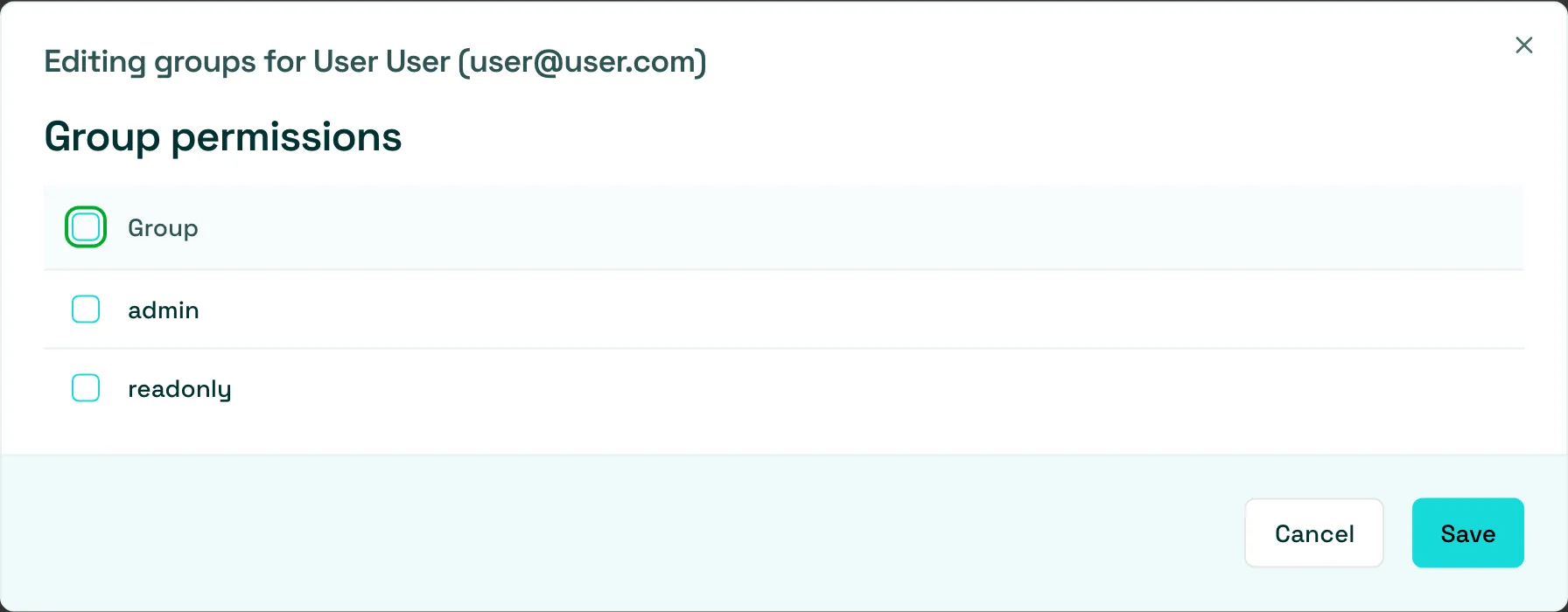
This will open a dialog titled Editing groups for the user, where you can select the group you want to add the user to.
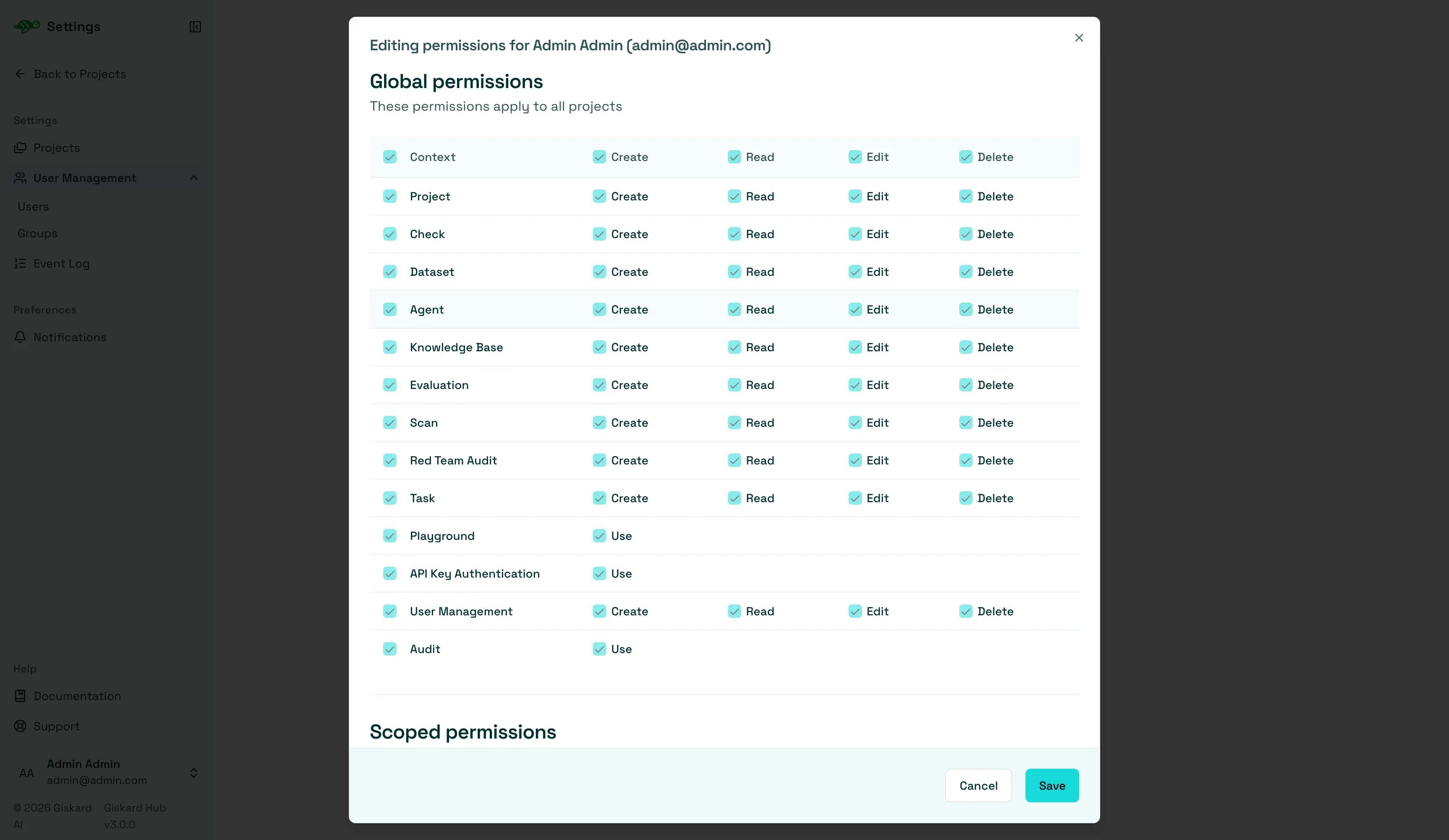
To set global and scoped permissions, use Edit permissions in the same menu. That opens a dialog, not a separate page.
Configure Global Permissions
Section titled “Configure Global Permissions”Global permissions apply access rights across all projects. You can configure Create, Read, Edit, and Delete permissions for each entity. This is available for: Project, Check, Dataset, Agent, Knowledge Base, Evaluation, Scan, Task, and User Management. Additionally, for features like the Playground, API Key Authentication, and Audit, you can enable or disable the users’ right to use it.
The rights are as follows:
- Create: users can create a new entity of the given type.
- Read: users can see entities of the given type.
- Edit: users can modify entities of the given type.
- Delete: users can permanently remove entities of the given type.
- Use: users can use the given feature.
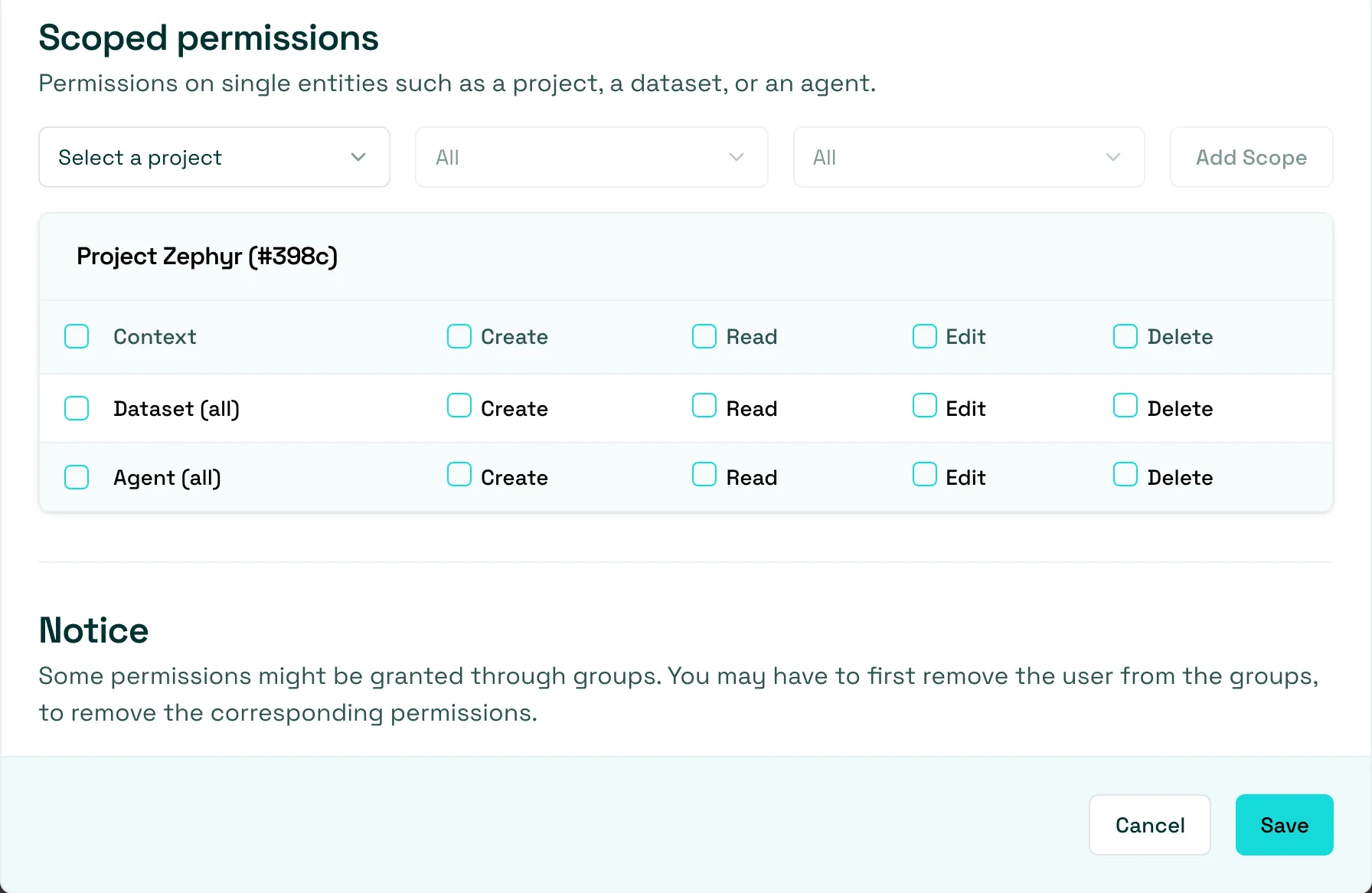
Configure Scoped Permissions
Section titled “Configure Scoped Permissions”Scoped permissions allow for granular control. For each project, you can specify which pages or entities users are allowed to access. An example of where this may be useful is if you want your users to read everything in a project but only allow a few people to edit the dataset.